The better-play notebook
Mobile vs Desktop Browser Gaming: Which Experience Suits You?
Compare touch, keyboard and mouse controls, screen space, comfort and browser-save limitations.
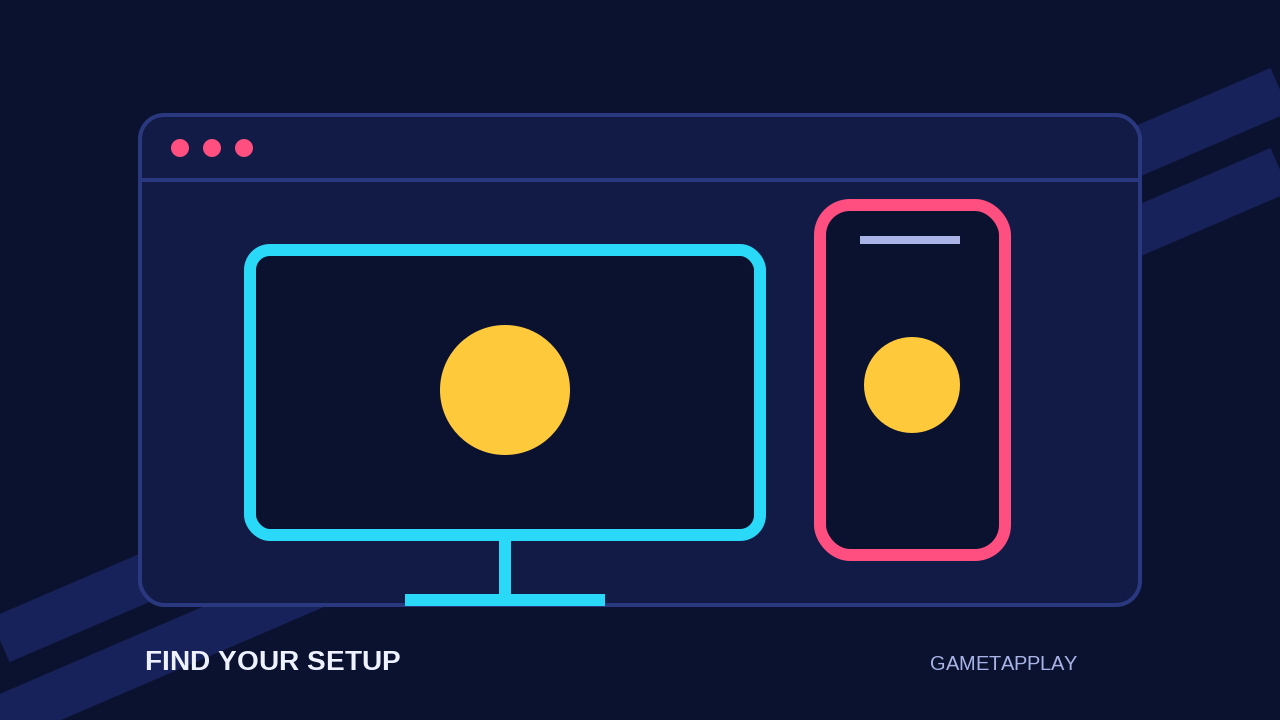
The better device for a browser game depends on what you need to do, where you are playing and which controls feel dependable. A phone offers direct touch and quick access. A desktop or laptop offers a larger display and physical inputs. Neither wins every game, and switching devices does not necessarily carry your progress with you.
Start with the action the game asks of you
A word puzzle needs accurate letter entry and clear feedback. A moving-target shooter needs precise pointing. A lane runner needs directional actions at the right time. Comparing devices makes more sense once you identify that main task.
WordQuest works with physical keys and its on-screen keyboard, while Mergeverse supports pointer aiming and touch dragging. Cosmic Strike combines steering with ability controls. The best device is the one that lets you perform those actions consistently without hiding important information or stretching your hands.
What touch does well
Touch can make a game's controls feel closely connected to the playfield. Tapping a target or dragging a fruit into position is easy to understand because the input happens where you are looking. A phone also makes short sessions convenient when a desktop is not available.
The tradeoff is that your hand occupies part of the screen. In Hard Target, a fingertip can obscure the small head zone. In a shooter, a steering finger can hide incoming fire. Try a comfortable grip and watch whether you regularly miss information underneath your hand before deciding that your reaction speed is the problem.
What keyboard and mouse do well
Physical keys give your fingers fixed reference points. A mouse can offer precise pointing without covering the screen, and a larger display can make small targets or text easier to distinguish. These advantages are useful for games that combine movement with separate actions.
There is still a learning cost. Switching between arrow keys, Space, Shift and E in Cosmic Strike can feel awkward until the layout is familiar. A laptop trackpad may also feel less precise than a mouse for repeated aiming. Test the controls you actually have, rather than comparing an ideal desktop setup with your current phone.
Screen size and orientation matter
A larger screen can separate controls from the playfield, but size alone does not guarantee better visibility. Browser zoom, display resolution and the page layout all affect how much useful information you see. Make sure the score, health or objective indicators remain readable.
On mobile, compare portrait and landscape while paused. Landscape may provide more horizontal room, while portrait may make a vertically arranged board easier to hold. Some games fit one orientation more comfortably. Avoid rotating during an important moment, because the layout change can interrupt your attention even when the game handles it correctly.
Compare performance without guessing the cause
A game that feels slow may be affected by rendering workload, competing tabs, device temperature or power-saving settings. Connection problems can also affect loading and server saves. Those are different issues and need different responses.
Close unnecessary busy tabs and compare a fresh session. If the game provides effect settings, change one at a time and watch whether movement becomes more consistent. Do not assume a faster connection fixes a frame-rate problem in an already loaded game. Similarly, smooth animation does not prove an anonymous server save succeeded; check its status separately.
Comfort can decide a longer session
A setup that feels convenient for two minutes may become tiring after repeated attempts. On mobile, watch for a cramped grip or a thumb stretched across the display. On desktop, place the keyboard and pointing device where your shoulders and wrists can remain relaxed.
Use breaks at results screens or between challenges. If a particular control causes discomfort, stop and change the arrangement or input method. For School Run, the choice between swipes and on-screen buttons is an opportunity to find a more comfortable action, not a test you must pass using one prescribed method.
Saves are not automatically shared
Browser access across devices is different from cross-device progression. An account-based game may offer synchronisation, but an anonymous browser save usually does not. Even two browsers on the same computer can hold independent records.
On GameTapPlay, Cosmic Strike saves locally. Other games use anonymous server saves or browser backups tied to that browser's storage or cookies. Hard Target runs in a same-site embedded playfield. Read the game guide before switching devices expecting the same unlocks, and avoid clearing site data unless you are prepared for possible progress loss.
Run a fair comparison for yourself
Choose a familiar section and play several attempts on each device. Keep the goal the same: accurate target hits, a clean runner section or a solved puzzle without accidental taps. Notice errors and comfort rather than looking only at your best score.
Ask whether you can see upcoming hazards, reach pause quickly and perform the required action without hesitation. If one setup feels better, keep it for that game. There is no need to use one device for every genre; a phone may suit your puzzle breaks while a keyboard feels better for space combat.
Choose by consistency, then enjoy the session
Browse the games and use their controls sections before picking a device. The beginner's browser-gaming guide helps with setup, and the reaction-time article explains how visibility and decisions affect performance. Choose the arrangement that makes your actions clear and comfortable, then spend your attention on learning the game itself.